

A Gantt chart is a scheduling system, not just a timeline
Any React Gantt component can draw bars and arrows. It can also let users drag task bars across the timeline or add and delete links between tasks.
A production plan needs more. When a task slips, a link changes, or a resource becomes unavailable, someone has to decide what happens to the rest of the plan. You can delegate this job to an automatic scheduling engine running behind the scenes.
SVAR React Gantt 2.8 introduces an upgraded scheduling engine for plans that change and must stay consistent. This article explains how it handles dependencies, constraints, calendars, resources, conflicts, and the critical path — and where its limits are today. See the full release notes here.
How the scheduling model works
The scheduling engine treats a plan as one connected model: tasks and durations, dependencies, constraints and deadlines, working-time calendars, resources, the critical path, and conflicts. These parts affect one another. A postponed task can move its successors, a moved successor can run into a constraint, and a new resource assignment can change which days a task can use.
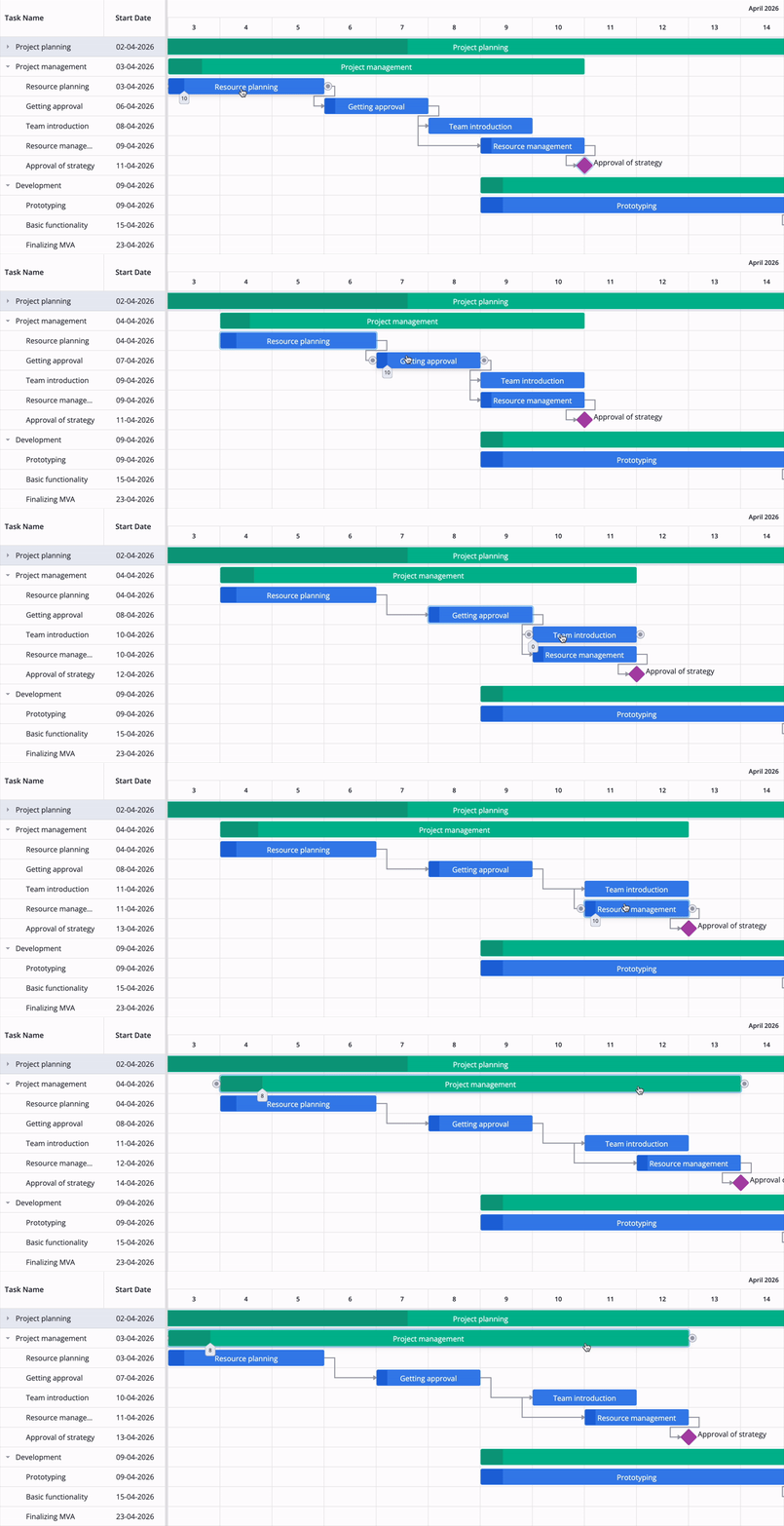
With auto-scheduling enabled, SVAR React Gantt propagates date-related changes through the task network. Currently, propagation is forward only: when a task changes, its successors are rescheduled; predecessors are never moved. We’re planning to add backward scheduling in our next update.
// PRO edition: npm i @svar/react-gantt (private SVAR npm registry)import { Gantt } from "@svar/react-gantt";
<Gantt tasks={tasks} links={links} scales={scales} schedule={{ auto: true }} />
By default, auto-scheduling is off. You can enable it through the schedule property. Critical path and slack can be used independently, but conflict reporting requires auto-scheduling. We’ll dive into these details later in the article.
Dependencies: all four link types
Real projects rarely consist of tasks that simply follow one another. Work can start in parallel, finish together, or overlap in controlled ways. SVAR React Gantt supports all four standard dependency types in auto-scheduling, so you can model these relationships without manually recalculating dates:
| Type | Rule for the successor | Example |
|---|---|---|
| Finish-to-Start (FS) | starts after the predecessor finishes | Drywall starts after electrical work is done. |
| Start-to-Start (SS) | starts after the predecessor starts | QA test design starts once development starts. |
| Finish-to-Finish (FF) | finishes after the predecessor finishes | Documentation finishes after the feature does. |
| Start-to-Finish (SF) | finishes after the predecessor starts | The old support shift ends only after the new one begins. |
A link defines the earliest permitted relationship between tasks, rather than an exact date. A successor can therefore be scheduled later than the link requires, but not earlier — unless a constraint or manual scheduling overrides that rule.
Links can also include a lag: the minimum number of days between the linked tasks. A positive lag creates a gap — for example, “start painting two days after drywall is complete.” A negative lag creates an overlap — for example, “start QA one day before development officially ends.” Users can edit lag values in the task editor.
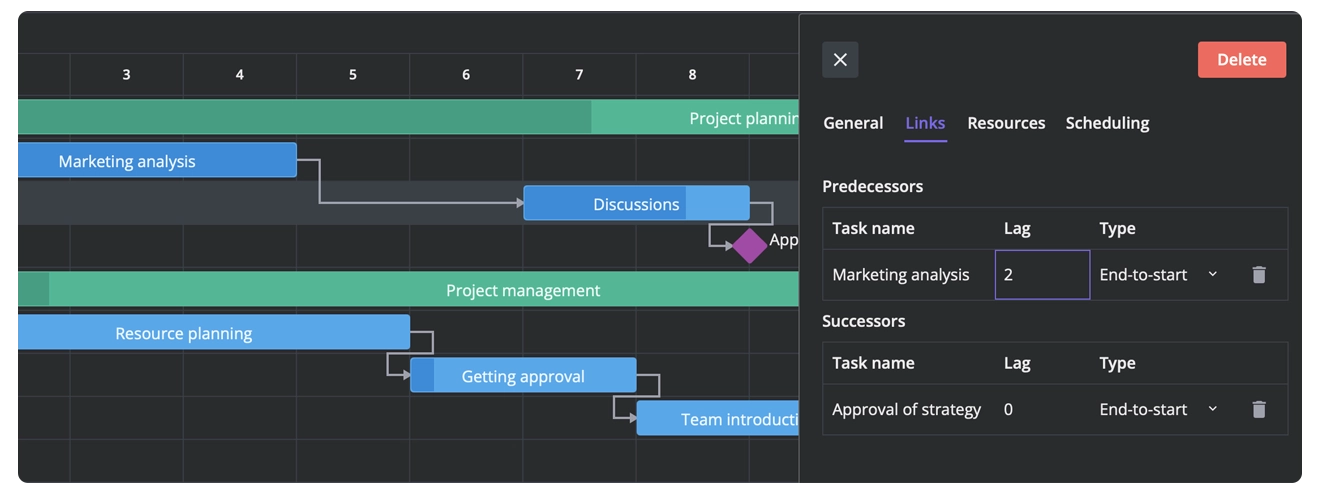
Circular links, links that break the parent chain, and links that do not make sense for summary tasks are rejected before they are created; cyclic links found in already-loaded data are cut.
👉 Demo: all four link types in auto-scheduling
📄 Docs: Auto scheduling
Constraints: when dates must not move
Dependencies describe how work is connected, but real plans also contain fixed business dates: a booked venue, a permit start, an audit, or a contractual delivery window. Constraints let you express those dates as scheduling rules rather than manually policing every task.
SVAR React Gantt supports six constraint types, with one constraint per task:
| Type | Meaning |
|---|---|
| SNET | Start No Earlier Than |
| SNLT | Start No Later Than |
| FNET | Finish No Earlier Than |
| FNLT | Finish No Later Than |
| MSO | Must Start On |
| MFO | Must Finish On |
Constraints apply to leaf tasks and milestones — not to summary tasks or individual segments of split tasks. One task can carry one constraint.
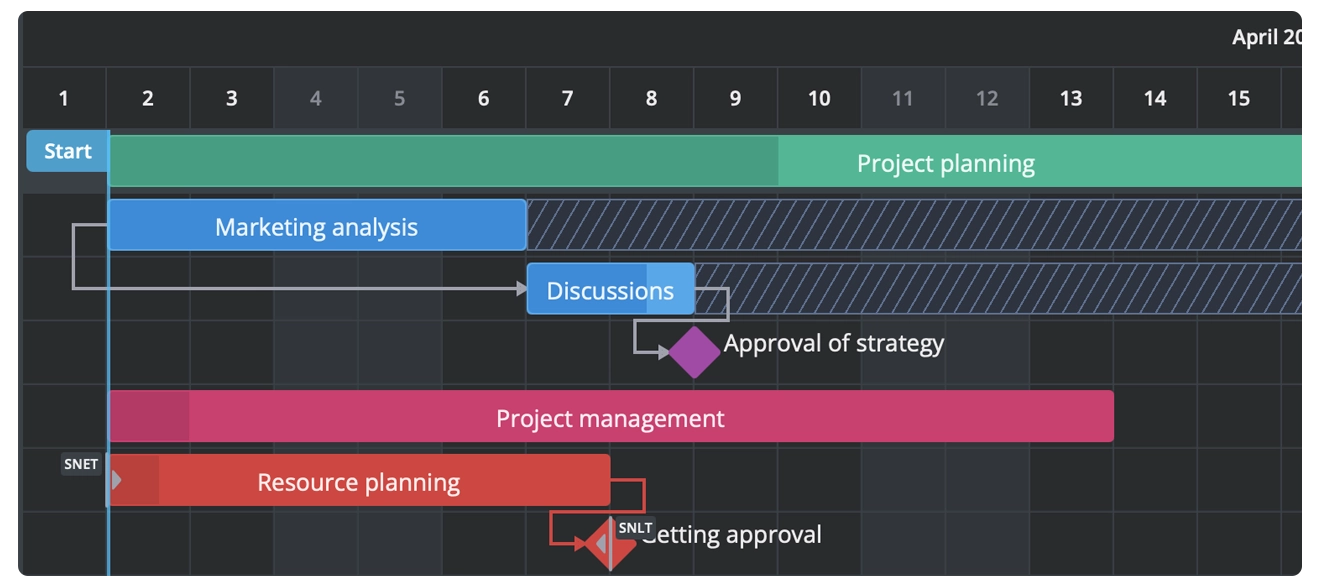
Once you enable auto-scheduling or critical-path calculation, the task editor adds a Constraint field where users choose the constraint type and date.
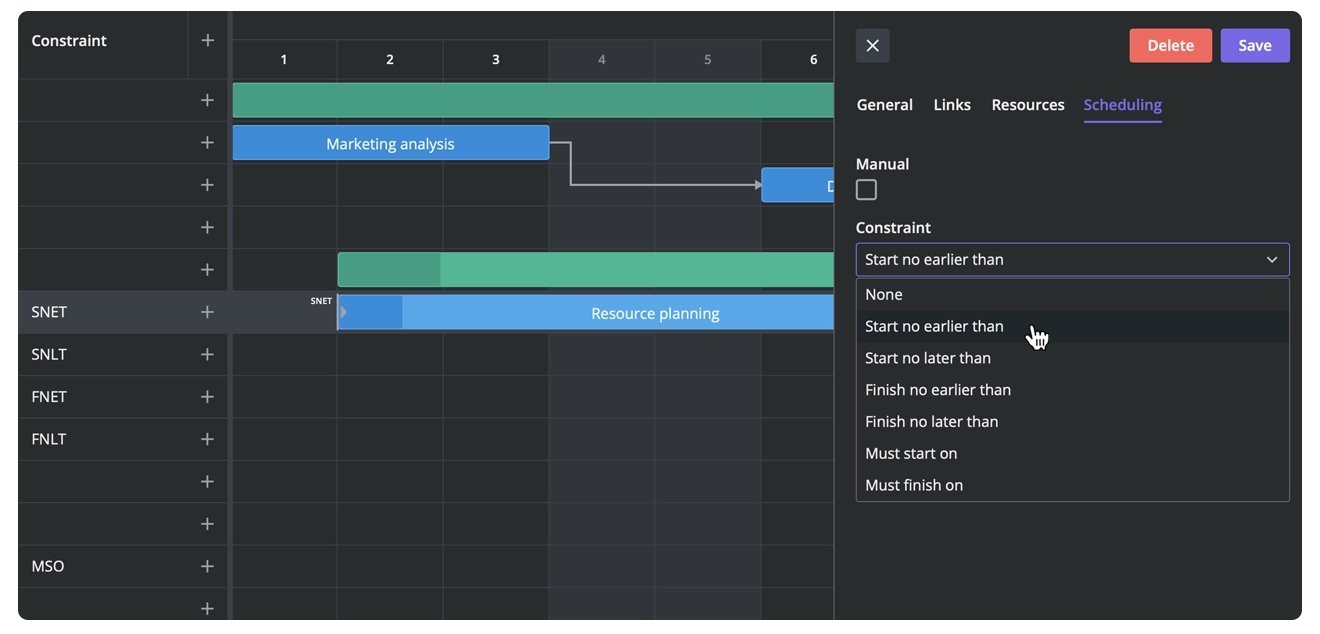
In the API, a constraint is defined through the constraint field on a task object:
// Trimmed example; see the documentation for the full sample{ id: 20, text: "Resource planning", start: new Date(2026, 3, 3), duration: 4, constraint: { type: "snet", date: new Date(2026, 3, 6), },}For finish-side constraints (fnet, fnlt, and mfo), the constraint date works like a task’s end date and is exclusive. To require a task to finish by the end of April 6, set the constraint date to April 7. This avoids ambiguity about whether the final day itself counts as completed work.
When a constraint meets dependency pressure
Suppose a task must start on May 4, but its predecessor slips to May 6. SVAR React Gantt keeps the task on its constraint date and reports the link as a conflict.
Constraints take priority over links. They never block an edit: the change is applied, and the violation is made visible so the user can decide how to resolve it.
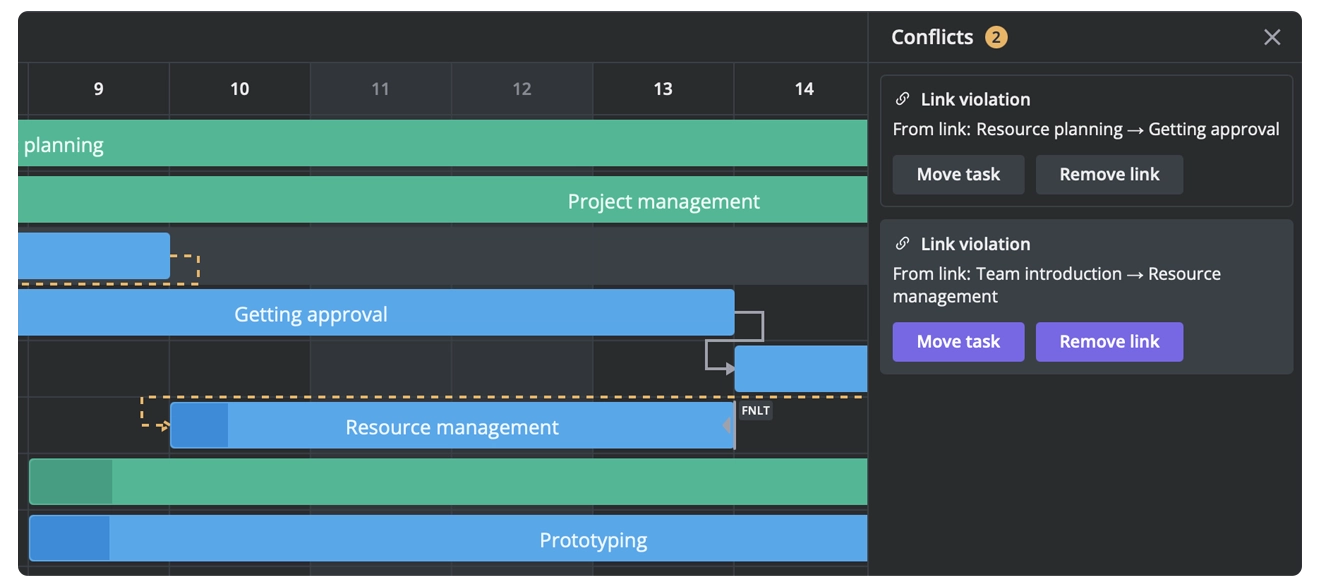
Deadlines work differently. A deadline is a softer signal: it displays a flag on the chart and turns red when a task finishes late, but it does not move the task.
👉 Demo: constraints and conflict reporting
📄 Docs: Constraints
Working-time calendars
A duration of “5 days” only means something once you define which days count as working time. SVAR React Gantt uses working-time calendars to separate calendar time from available work time.
Calendars are configured at three levels:
- Project calendar: the default working week and holidays for the whole plan.
- Task calendars: a task can follow its own calendar, for example weekend-only maintenance work.
- Resource calendars: the working days of an individual person. By default, they affect workload calculation only; when
schedule.resourceCalendarsis enabled, they also affect task dates.
<Gantt tasks={tasks} links={links} scales={scales} schedule={{ auto: true, resourceCalendars: true }}/>For example, imagine a three-day review that starts on Thursday and is assigned to a specialist who does not work on Fridays. With resource calendars enabled, the review takes three working days (Thursday, Monday, and Tuesday) and any tasks that depend on it move accordingly.
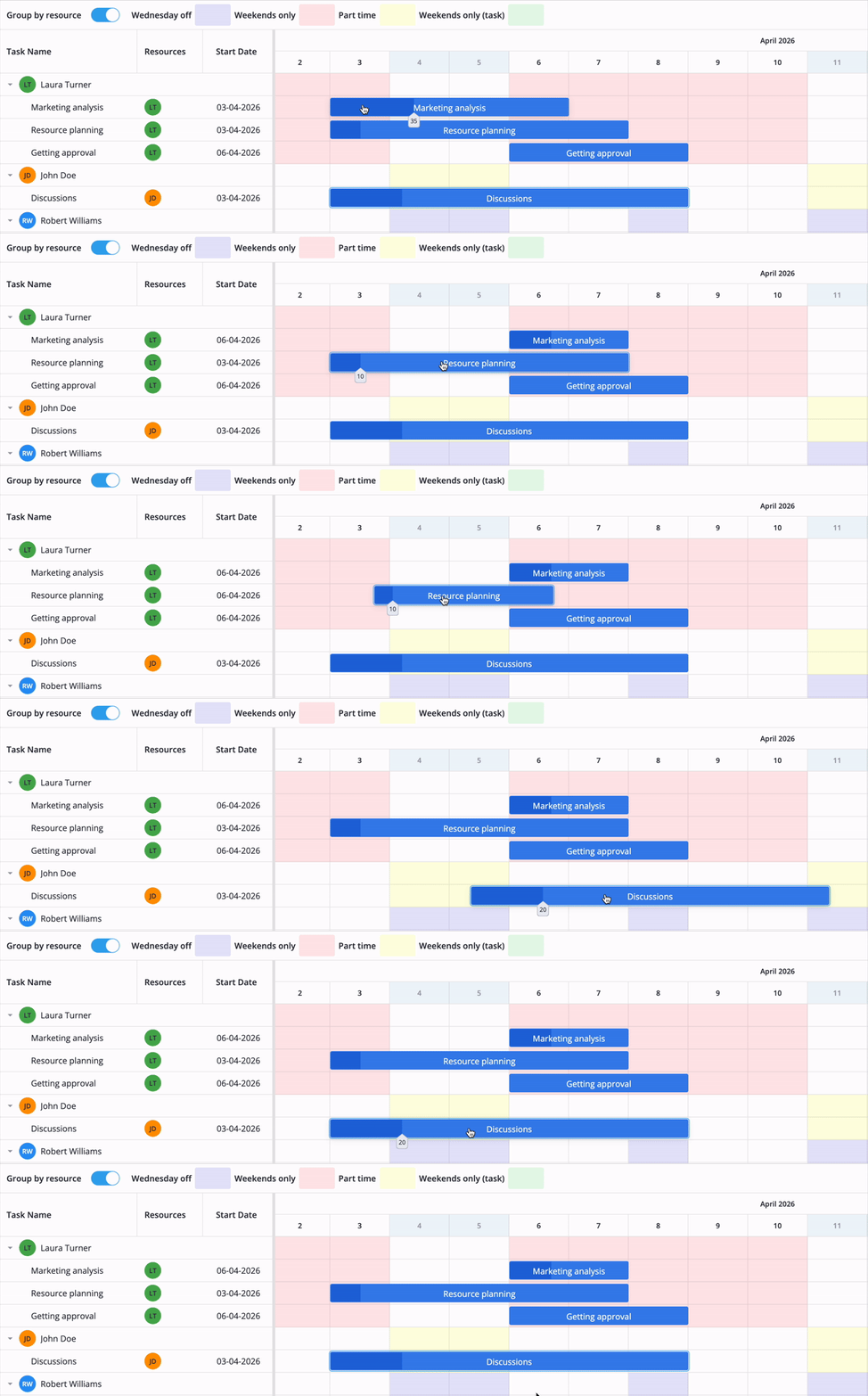
What if the task and the assigned resource have no overlapping working days? For example, a weekend-only task assigned to someone who works only on weekdays. In that case, SVAR React Gantt falls back to the task’s own calendar, so the task keeps its original working-day pattern instead of becoming impossible to schedule.
Calendars currently work at the day level: they define working days and hours per day, but not intraday intervals such as a lunch break. We plan to add intraday intervals in one of the future releases.
👉 Demo: resource calendars
📄 Docs: Resource calendar
Resource-driven scheduling
In many planning tools, assigning a person to a task is mostly a visual label. In SVAR React Gantt, it can also be part of the schedule. When resourceCalendars is enabled, the working days of an assigned resource influence when the task can be scheduled, so plans reflect real availability rather than an idealized timeline.
SVAR React Gantt treats resource assignment as part of the scheduling model:
- Assign resources: Link people to tasks with an allocation percentage, through the grid, the task editor, or drag and drop.
- Drag from anywhere: Drag resources onto tasks from the resource load view or from an external list.
- Resource calendars: Define each person’s working days; they are used in workload calculations.
- See the workload: The Resource Load view shows each person’s workload over time against their capacity.
- Histogram: Visualize allocated work across the timeline.
- Spot overload: Overallocation is highlighted, so planners can see where someone is overbooked.
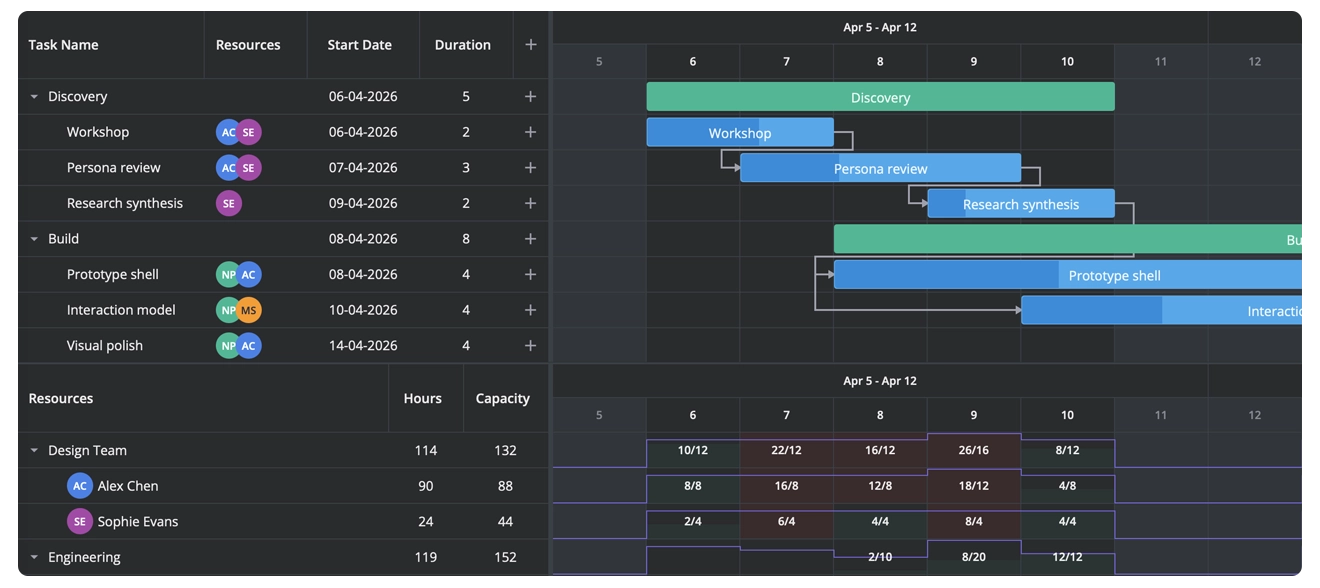
In the current version, SVAR Gantt highlights overload but does not resolve it automatically. Task duration also does not change with the number of assigned people; effort-driven scheduling is on our roadmap.
👉 Demos: resource histogram
📄 Docs: Resources
Conflict handling: make invalid plans visible
In real life, plans do not always stay consistent. A predecessor task slips, a fixed date cannot move, or a user creates a link that the schedule cannot satisfy. SVAR React Gantt handles these situations as scheduling conflicts: it keeps the user’s intent visible, reports what cannot be satisfied, and offers a way to resolve it.
Here is how the scheduling engine treats the conflicts:
- Invalid links are removed: circular dependencies and links that do not make sense for summary tasks are detected as invalid and automatically removed.
- Rule contradictions are reported: when a constraint and a link cannot both hold, the engine keeps the user’s dates and records a conflict.
- Visual indicators: violated constraints and links are highlighted on the chart, and the toolbar’s Conflicts button signals when problems exist.
- Conflict list with one-click fixes: The conflict panel lists every problem and offers to move the task, remove the link, or remove the constraint.
The engine does not silently rewrite the plan or hide the problem. It surfaces what cannot be satisfied and leaves the decision to the user: move the task, remove the link, or remove the constraint.
Conflicts are also available as data, not only as UI:
function init(api) { api.on("set-conflicts", ({ conflicts }) => { // { type: "link" | "constraint", task, link?, required: Date } console.log(`${conflicts.length} conflicts after the last run`); });}The conflicts state is replaced on every auto-scheduling run. An empty array means that the current plan has no reported conflicts. The same array feeds the ConflictReport panel and the highlighting on the chart.
👉 Demo: Conflicts list and one-click resolution
📄 Docs: set-conflicts
Inactive, manually scheduled, and unscheduled tasks
Not every task should be driven by the scheduler. Real projects contain work that is fixed outside the plan, temporarily paused, or not yet ready to schedule. SVAR React Gantt lets you keep these tasks in the plan without forcing them into the scheduling logic.
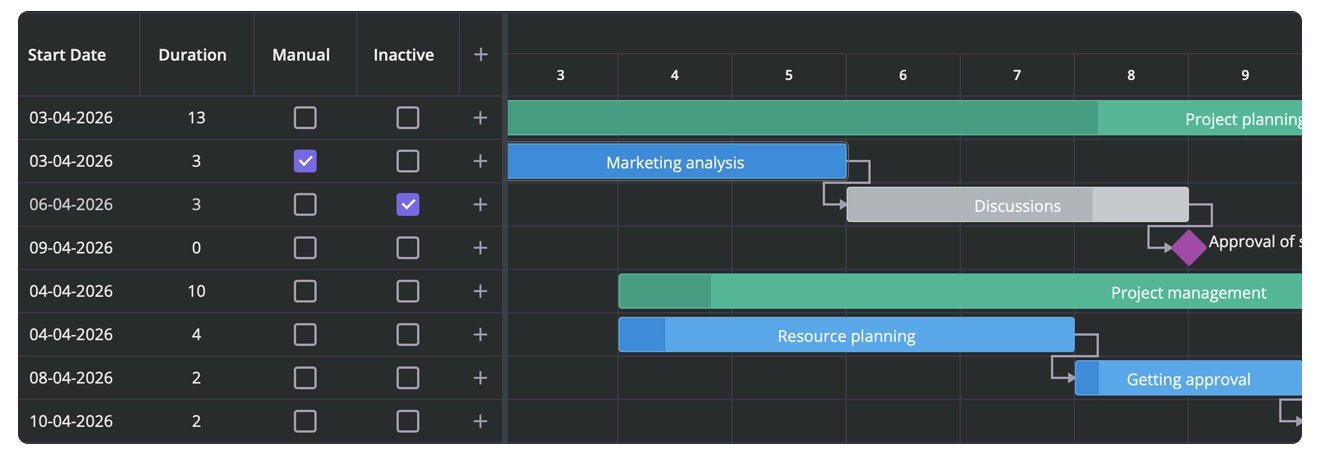
- Manually scheduled tasks keep the dates the user set. Links and constraints do not move them, but they still drive their successors, and their conflicts are still reported. Use them for dates fixed outside the plan, such as a confirmed supplier delivery.
- Inactive tasks are suspended work. They stay visible in grey with their dates and links, but they are excluded from scheduling, critical path, and resource load. You can make a task active again at any time, and it returns to the scheduling calculation.
- Unscheduled tasks have no dates yet. With
unscheduledTasksenabled, they appear in the tasks tree with a hyphen in the Start and Duration columns and no bar on the timeline. They stay there as backlog until someone sets a date — by picking one in the grid or the editor, or by clicking or dragging across the task’s empty row on the chart.
There is also a placeholder row below the last task: an empty row for adding new tasks the way you would in a spreadsheet. Fill in an editable cell in the grid, or draw the task directly on the timeline.
<Gantt tasks={tasks} links={links} scales={scales} inactiveTasks unscheduledTasks placeholderRow/>For example, imagine a client cancels an optional training module. Marking it inactive keeps it in the plan for reporting, while the go-live date, critical path, and trainer workload are recalculated without it. If the client later changes their mind, you can make the task active again and it returns to the schedule.
👉 Demos: Manual and inactive tasks • Placeholder row
📄 Docs: Unscheduled tasks • Inactive tasks
Critical path
A schedule is not only a list of dates. Managers also need to know which tasks actually control the delivery date, and how much room the rest of the plan has to move. The critical path answers that question.
The critical path is the chain of tasks that determines the project end date: delay any of them, and the project finishes later. Other tasks have slack — the time they can slip without moving the finish date.
- All link types and calendars: Slack is calculated across FS, SS, FF, and SF links, including lag, and respects working-time calendars.
- Constraints: When constraints make a plan infeasible, slack can become negative and show how many days need to be recovered.
- Two calculation modes: Strict mode highlights a complete chain of zero-slack tasks. Flexible mode always returns the path with the minimum slack, which is useful when the plan has float everywhere or is over-constrained.
Inactive and unscheduled tasks are excluded from the calculation. Manually scheduled tasks remain part of the network, but the engine treats their dates as fixed: they have zero slack while the schedule fits, and negative slack when a predecessor runs past them.
<Gantt  tasks={tasks}  links={links}  scales={scales}  criticalPath={{ type: "flexible" }}  slack/>
// Afterwards:// task.critical === true// link.critical === true// task.slack = { earliestStart, latestStart, freeSlack, totalSlack }
Slack is returned as a per-task object with earliestStart, latestStart, freeSlack, and totalSlack. You can display these values in custom grid columns or use them in your own reporting logic.
👉 Demos: Critical path • Slack
📄 Docs: Critical path • Slack
Performance at scale
A scheduling engine is only useful if it stays responsive on real plans. In SVAR React Gantt 2.8, we reworked the scheduling passes and bulk updates that had caused performance issues in earlier versions. Auto-scheduling now remains practical even on very large plans.
- Faster auto-scheduling in 2.8: Scheduling passes and bulk updates were reworked for speed. An edit recalculates only the tasks that depend on it, rather than rebuilding the entire plan.
- Virtualized rendering: Only visible rows and timescale cells are rendered, so long plans and long date ranges stay smooth.
- React-friendly updates: Data lives in the Gantt’s own store, so a cascade that moves thousands of tasks re-renders only what is on screen.
The 100,000-task demo is a stress test: a single chain of linked tasks where enabling auto-scheduling moves every task in the plan. In this demo, rendering 100,000 chained tasks takes about 1.5 seconds. Dragging a task triggers two cascade updates: the synchronous update takes about 139 ms, and the full paint takes about 863 ms. Timings will vary by hardware, but the demo lets you measure them on your own machine.
👉 Demo: 100,000 tasks with auto-scheduling
Developer experience in React
A powerful scheduling engine is only useful if it is easy to integrate. SVAR React Gantt is a native React component: predictable state, TypeScript support, and a workflow that fits the way React teams already build apps.
And now, when using coding agents is our everyday reality, SVAR offers an easy way to integrate and customize the Gantt chart to your needs, with an MCP server, skills, and context packs.
Here is what developers get with SVAR React Gantt:
- Native React API: Written in React, not wrapped around a JS library or another framework. A clean, understandable API for the best developer experience. The same engine ships for Vue and Svelte as native components, not wrappers.
- TypeScript support: Full type definitions for all data and configuration.
- Easy customization with CSS: Ready-to-use light and dark themes, plus the ability to customize every aspect of the Gantt chart with CSS variables.
- Fits React state patterns: Every change is an observable action. The docs include guides for Redux, Zustand, MobX, and TanStack Query.
- Docs, demos, and AI resources: Every feature has a guide and a live sample, plus skills for AI coding assistants and an MCP server.
Summary table & what’s next
SVAR Gantt 2.8 covers forward, day-level, time-based scheduling. The scheduling engine will keep evolving in the same direction: we are working on backward scheduling, intraday calendars, effort-driven planning, time zones, and more advanced resource and cost management.
The table below lists the scheduling capabilities of SVAR React Gantt PRO 2.8 and what we’re planning to add next.
| Scheduling capability | Supported in SVAR Gantt 2.8 | Details |
|---|---|---|
| Dependency types | ✅ | FS, SS, FF, SF — all four link types |
| Automatic rescheduling | ✅ | Dependency-driven cascade, enabled through schedule.auto |
| Lag on dependencies | ✅ | Supported on every link type |
| Constraints | ✅ | SNET, SNLT, FNET, FNLT, MSO, MFO |
| Constraint scope | ✅ | Leaf tasks and milestones, one constraint per task |
| Deadlines | ✅ | Visual indicator; does not move the task |
| Working-time calendars | ✅ | Project, task, and resource calendars |
| Calendar granularity | ✅ | Day-level working and non-working days |
| Intraday calendar intervals | — | On the roadmap |
| Resource-driven scheduling | ✅ | Assignments can affect task dates when schedule.resourceCalendars is enabled |
| Resource workload | ✅ | Load view and histogram |
| Overallocation visibility | ✅ | Highlighted in load and histogram views |
| Conflict handling | ✅ | conflicts state, ConflictReport list, invalid-link indicators, cycle prevention |
| Inactive tasks | ✅ | Excluded from scheduling but retained in the plan |
| Manually scheduled tasks | ✅ | Dates stay fixed; successors are still recalculated |
| Unscheduled tasks | ✅ | Tasks without dates, kept as backlog until scheduled |
| Placeholder row | ✅ | Empty row for adding new tasks |
| Baselines | ✅ | Planned vs actual comparison |
| Critical path | ✅ | Strict and flexible modes, slack calculation |
| Backward scheduling / ALAP | — | On the roadmap |
| Effort-driven scheduling | — | On the roadmap |
| Time-phased assignments | — | On the roadmap |
| Cost calculations | — | On the roadmap |
| Resource types | — | On the roadmap |
| Time zones | — | On the roadmap |
| Calendar editor UI | — | On the roadmap |
| Full keyboard accessibility | ☑️ | Partial keyboard support |
Get started with SVAR React Gantt
The easiest way to see the scheduling engine in action is to open the React Gantt demos. Start with auto-scheduling, then explore constraints, resource calendars, and the 100,000-task stress test.
When you are ready to try it in your own project, follow the React Gantt quickstart to set up a basic chart. Then enable the scheduling features you need: auto-scheduling, constraints, or critical path.
The advanced scheduling capabilities described in this article are part of the PRO edition. You can get a free PRO trial from the SVAR React Gantt page and evaluate auto-scheduling, constraints, resource planning, and critical-path calculation in your own application.
For pricing and licensing details, see the pricing page.
SVAR React Gantt 2.8 turns a task timeline into a scheduling engine: dependencies, constraints, calendars, resources, and critical-path analysis work together to keep complex plans consistent.